Many people can claim that they can edit videos in Adobe Premiere Pro. But how many can claim they can edit videos like a real pro? Being a professional editor partly hinges on being able to accomplish tasks on short time budget.
Fortunately, Adobe Premiere Pro is highly customizable for different tasks, and with right keyboard shortcuts, you can easily cut down the time required to perform tasks several fold.
In this post, I will share my experience in setting up keyboard shortcuts for Adobe Premiere Pro. I’m currently using Adobe Premiere Pro CC 2018, but these keyboard shortcuts apply to most versions of the Adobe Premiere Pro.
My experience using keyboard shortcuts in Adobe Premiere Pro
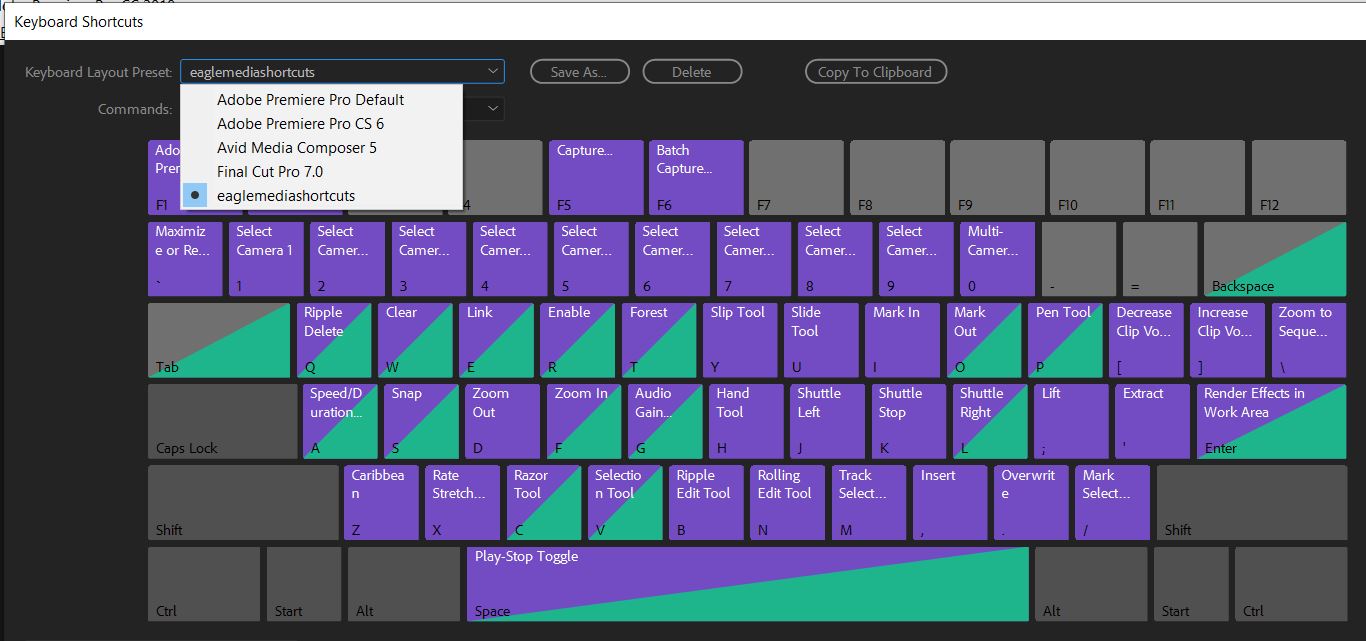
Below is my keyboard layout for Adobe Premiere Pro shortcuts.
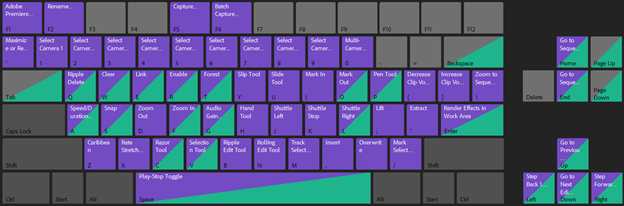
I am using these shortcuts for more than 14 years now. When I begun my professional video production journey in Adobe Premiere Pro, I used to edit with the default keyboard shortcuts. But soon I realized that I can be faster and I can use my skills better than what I am doing now. I was a fast typist but the distance and the placement of each tool and function on the keyboard was limiting my editing speed. So I decided to customize my own keyboard shortcuts for Adobe Premiere Pro and in the past years I developed and enhanced as I picked up experience in new video editing projects.

I will explain why I decided to customize my shortcuts in these areas, and I will explain the most important things about the shortcuts so everyone can customize their own keyboard shortcuts knowing that is one of the most important steps to being a faster and more professional video editor with Adobe Premiere Pro.
Finally, I will share my Adobe Premiere Pro keyboard shortcuts file so everyone can download it (for free of course) and use it in case you find it effective for your work. But remember, the most important is that you find your fingers flexibility and customize your own keyboard shortcuts so that you drive comfortably while you edit your video.
The best keyboard shortcuts area in Premiere Pro
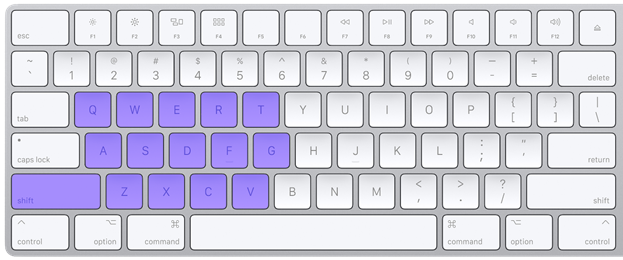
When editing in Premiere Pro, I customize most of my keyboard shortcuts in the left keyboard area. Gamers know how important these keys are because you need your right hand to handle the mouse (that is, of course, if you’re right-handed). I also found out that the best pose and fastest reaction of the fingers without looking at the keyboard is the same as the classic pose for normal typing. This is why I decided to be focused on the left area.
For example the default keys for zoom in and zoom out to the timeline in Adobe Premiere Pro are the “+\=” for zoom in and “_\- “for zoom out. To use the zoom keys, you need to move your hand all the way to the top-right side of the keyboard, and if you want to hit play with the space key immediately you need immediately move your hand to the bottom area, which is time consuming and tiring when you have to do it hundreds and thousands of times in a single editing session. You lose time, time that you can use it to do more edits. Therefore I brought the zoom functions on the “f” (zoom in) and “d” (zoom out) and I will not need to displace my hand on the keyboard.
When editing in Premiere Pro, I customize most of my keyboard shortcuts in the left keyboard area. Gamers know how important these keys are because you need your right hand to handle the mouse (that is, of course, if you’re right-handed). I also found out that the best pose and fastest reaction of the fingers without looking at the keyboard is the same as the classic pose for normal typing. This is why I decided to be focused on the left area.
For example the default keys for zoom in and zoom out to the timeline in Adobe Premiere Pro are the “+\=” for zoom in and “_\- “for zoom out. To use the zoom keys, you need to move your hand all the way to the top-right side of the keyboard, and if you want to hit play with the space key immediately you need immediately move your hand to the bottom area, which is time consuming and tiring when you have to do it hundreds and thousands of times in a single editing session. You lose time, time that you can use it to do more edits. Therefore I brought the zoom functions on the “f” (zoom in) and “d” (zoom out) and I will not need to displace my hand on the keyboard.
What is important to know about keyboard shortcuts in Adobe Premiere Pro
The most important thing to know to customize a good shortcut is that you should be able to perform the task with minimum movement of your fingers and with no movement of your hand at all. It also depends on which are the tools that you use the most while editing. For example I use the audio gain panel many times to normalize my audio tracks. This is why I configure the “G” key right next to my zoom keys to bring up the audio gain option.
Below you’ll see the most important of my shortcut keys. Some of them are as the default but I think it’s important to know about them as well.
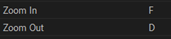
Zoom in “f”
Zoom out “d”
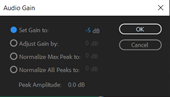
Audio gain “g”
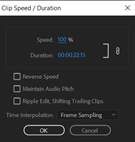
Clip Speed/duration “a”

Snap on/off “s”
Ripple delete “q”
Delete/Clear “w”
Link and Unlink video from audio “e”
Disable “r”
Label Forest “t”
Label Caribbean “z”

Select tool “v”
Cut tool “c”
Hand tool “h”
Rate stretch tool “x”
Track select forward tool “m”
Slip tool “y”
Marker “*”
Rename “F2”
Shuttle right “L”
Shuttle left “J”
Shuttle Stop “K”
Export “CTRL + M”
Export frame “CTRL + SHIFT + M”
You might notice that some of the tools that you use the most are not included in these shortcuts. This is why everyone has to customize their own keyboard shortcuts for Adobe Premiere Pro. Maybe there are some effective tools that you use more often than I do.
The file shared below is my customized shortcut file that you can place in the address mentioned below. Feel free to share your experience in setting up keyboard shortcuts and speeding up your editing in Adobe Premiere Pro in the comments section.
How to install keyboard shortcuts on Adobe Premiere Pro
Below you can find the link to my own Adobe Premiere Pro shortcuts.
After downloading the file, here’s what you must to do install it:
- Open your Documents folder
- Go to “\Adobe\Premiere Pro\{Premiere Version}\Profile-{username}\”
- Copy the “eaglemediashortucts.kys” file in the profile folder
- Launch Premiere Pro\
- Go to Edit>Keyboard Shortcuts… or press Ctrl+Alt+K
- Click on “Keyboard Layout Presets” and choose “eaglemediashortcuts”
- Click Ok

 EAGLE MEDIA LABS